Using the staking DApp
The staking DApp offers convenient access to our public staking Vault and its underlying smart contracts. While we recommend using the DApp, it is not required – you can interact with the Vault using any compatible interface. For example, you can also use StakeWise's user interface or interact with the smart contracts directly.
Prerequisites
In order to stake via our staking DApp you'll need:
- a self-custodial wallet
- ETH or GNO tokens in that wallet (depending on whether you want to stake on Ethereum or Gnosis Chain)
Testnet first
We recommend going through the whole process on a testnet first, specifically on the Hoodi Ethereum testnet. Get a small amount of free testnet ETH from a faucet like this one.
This allows you to become familiar with the staking flow before using real assets.
Connecting your wallet
To interact with our DApp you'll first need to connect your wallet to it. Depending on the extensions you have installed in your browser, you may see a slightly different set of options to choose from.
Select your wallet and connect it to the staking DApp.
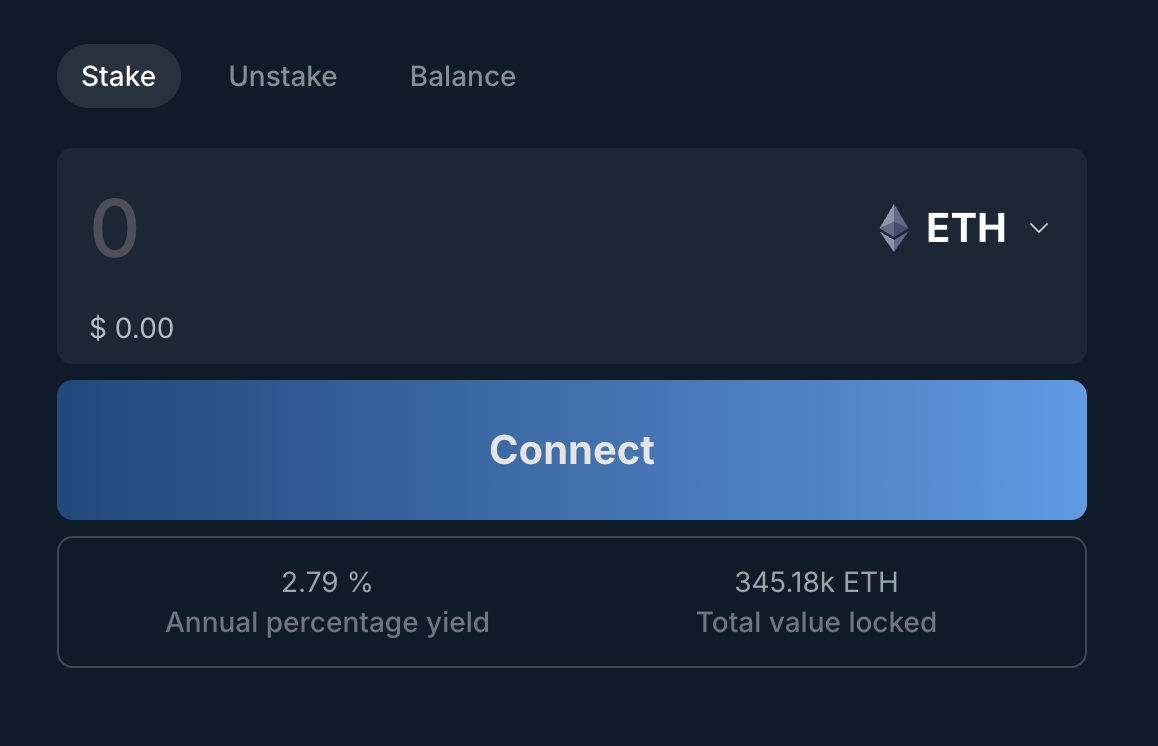
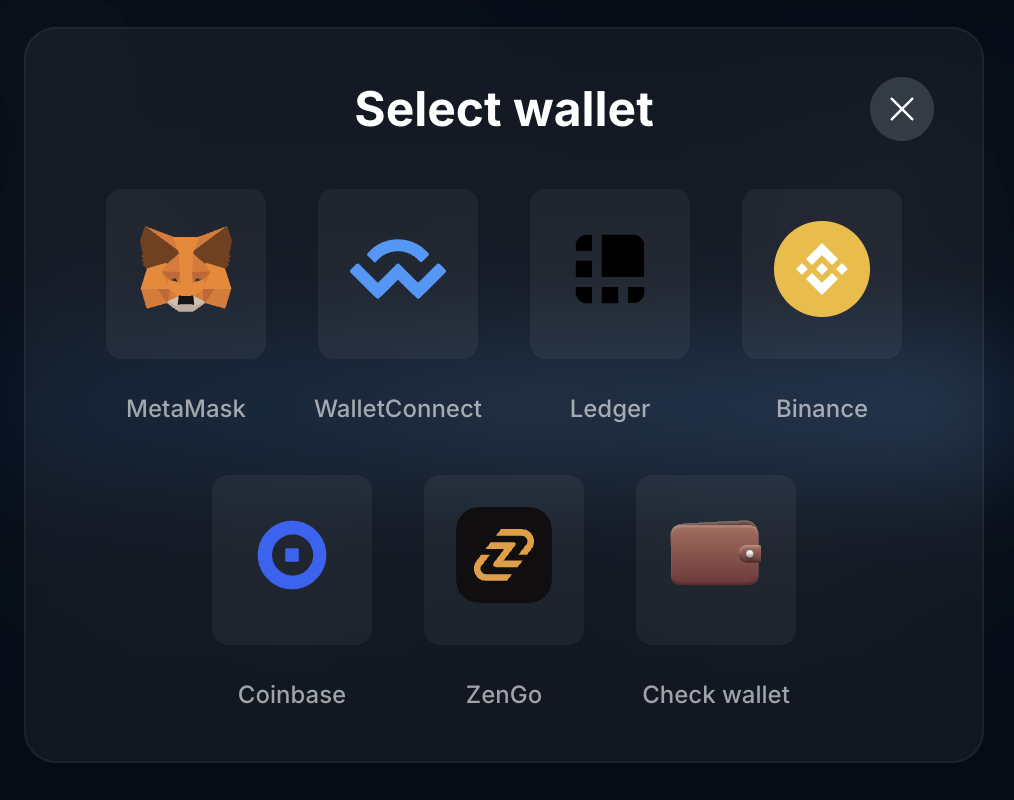
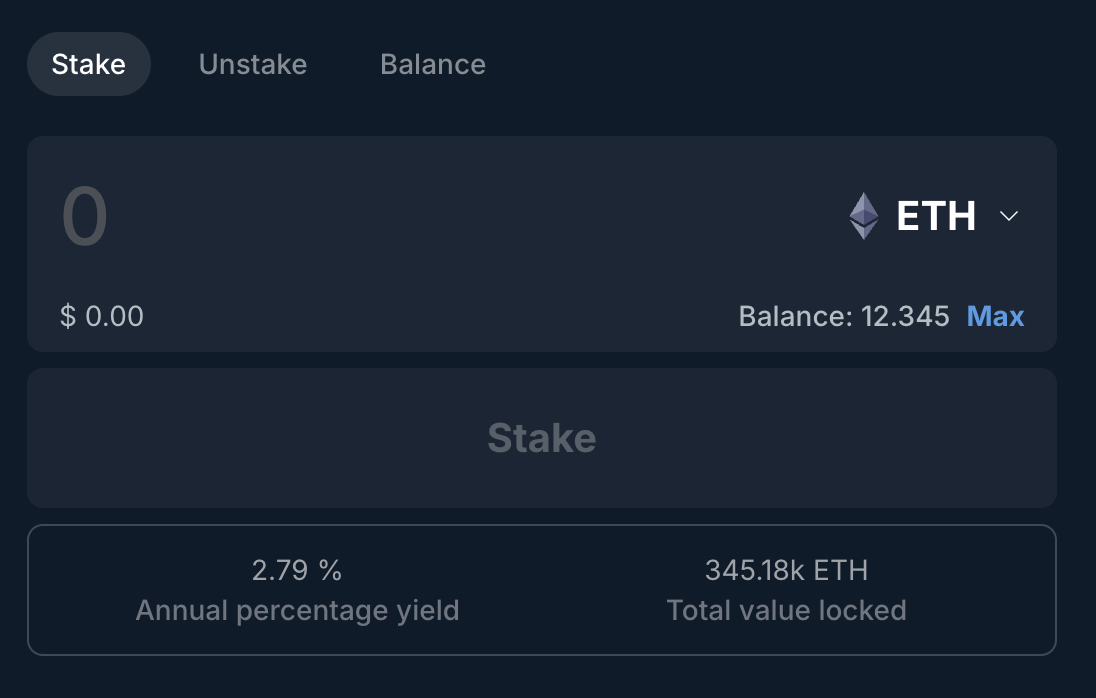
Once connected the UI will show you how much ETH/GNO you have available to stake.
Staking
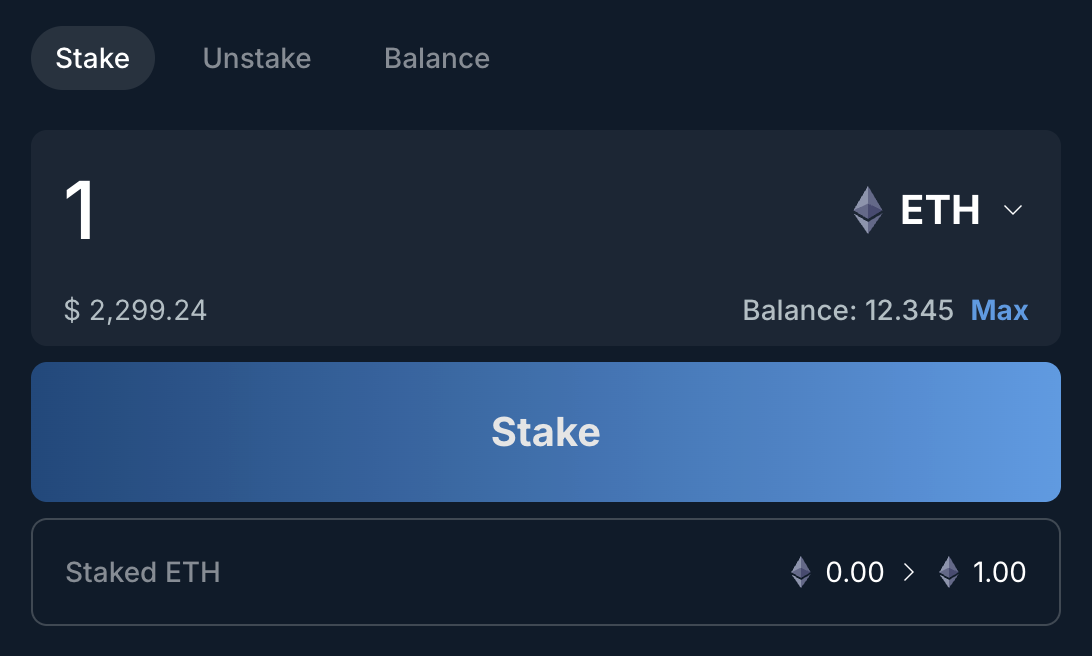
Next, choose the amount of tokens you would like to stake, click the Stake button and confirm the transaction in your wallet.
Monitoring rewards
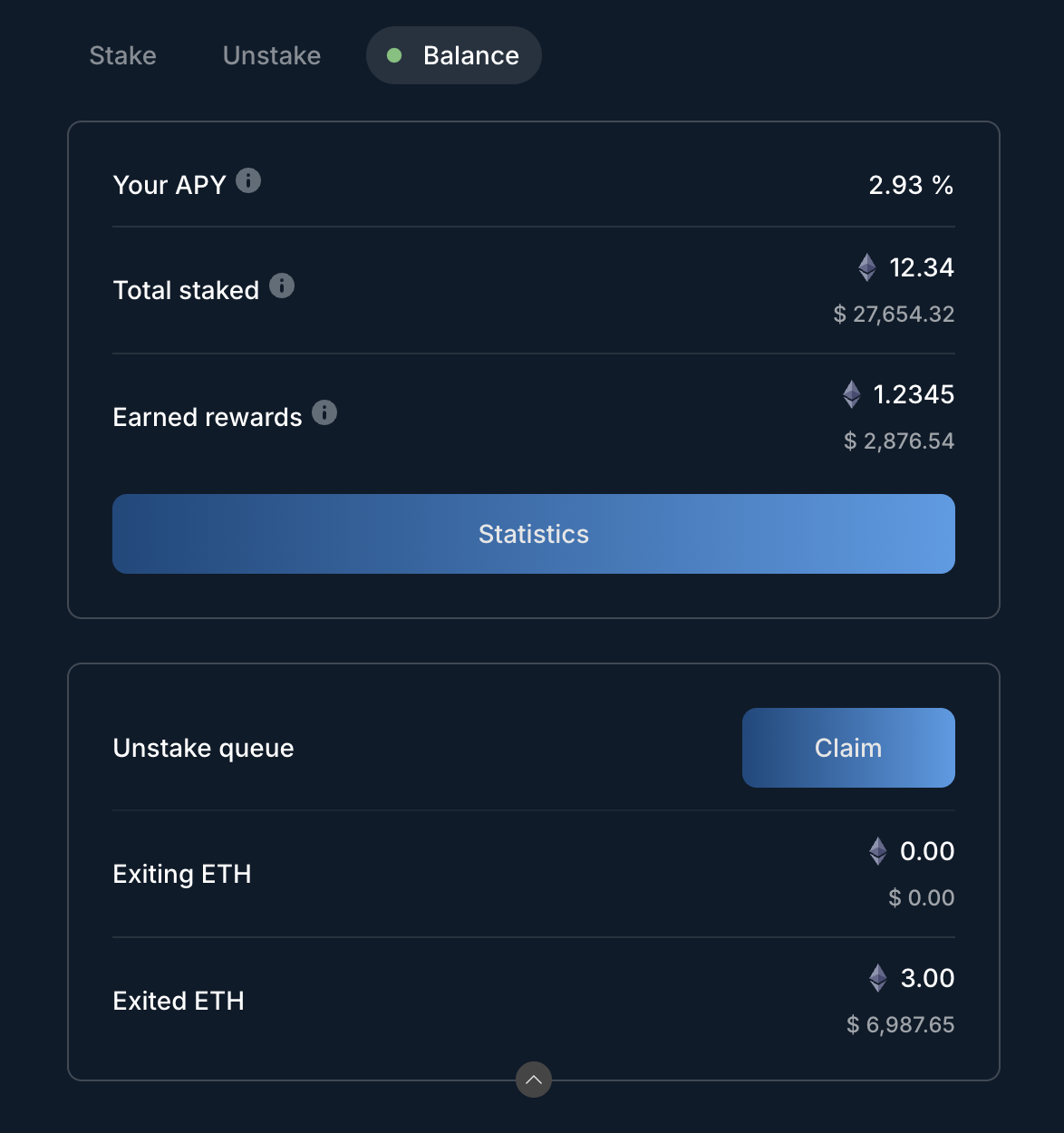
Once you have staked some tokens, head to the Balance tab for a quick overview of your APY and earned rewards.
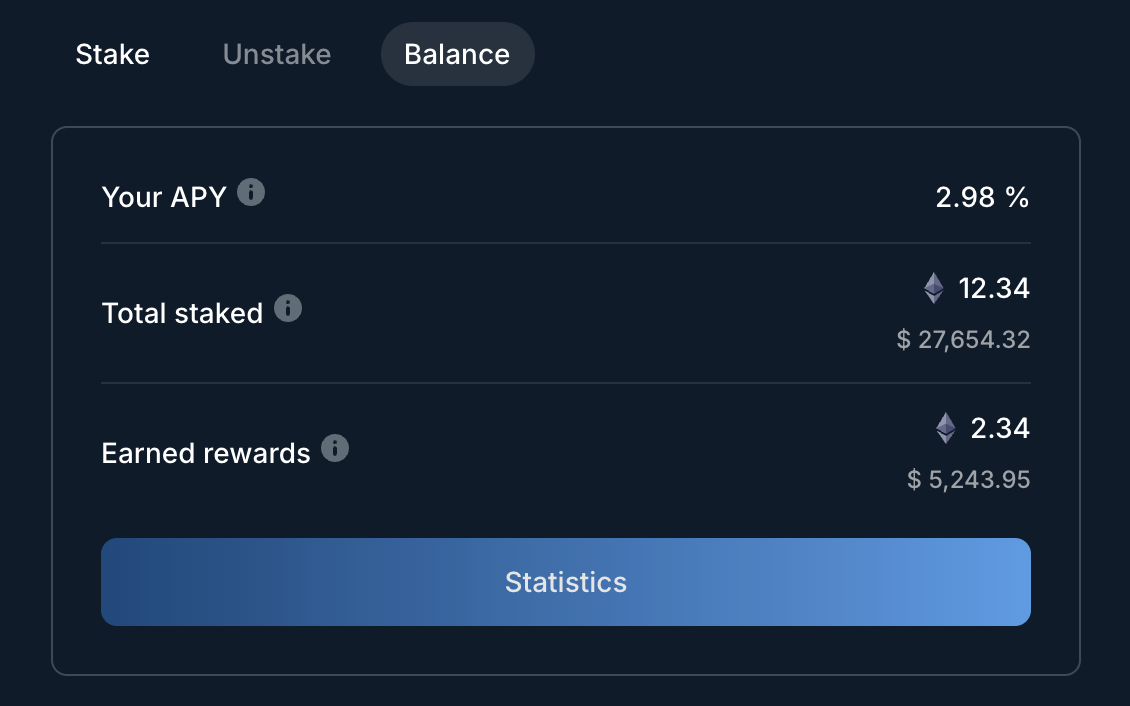
More detailed statistics can be accessed by clicking the Statistics button:
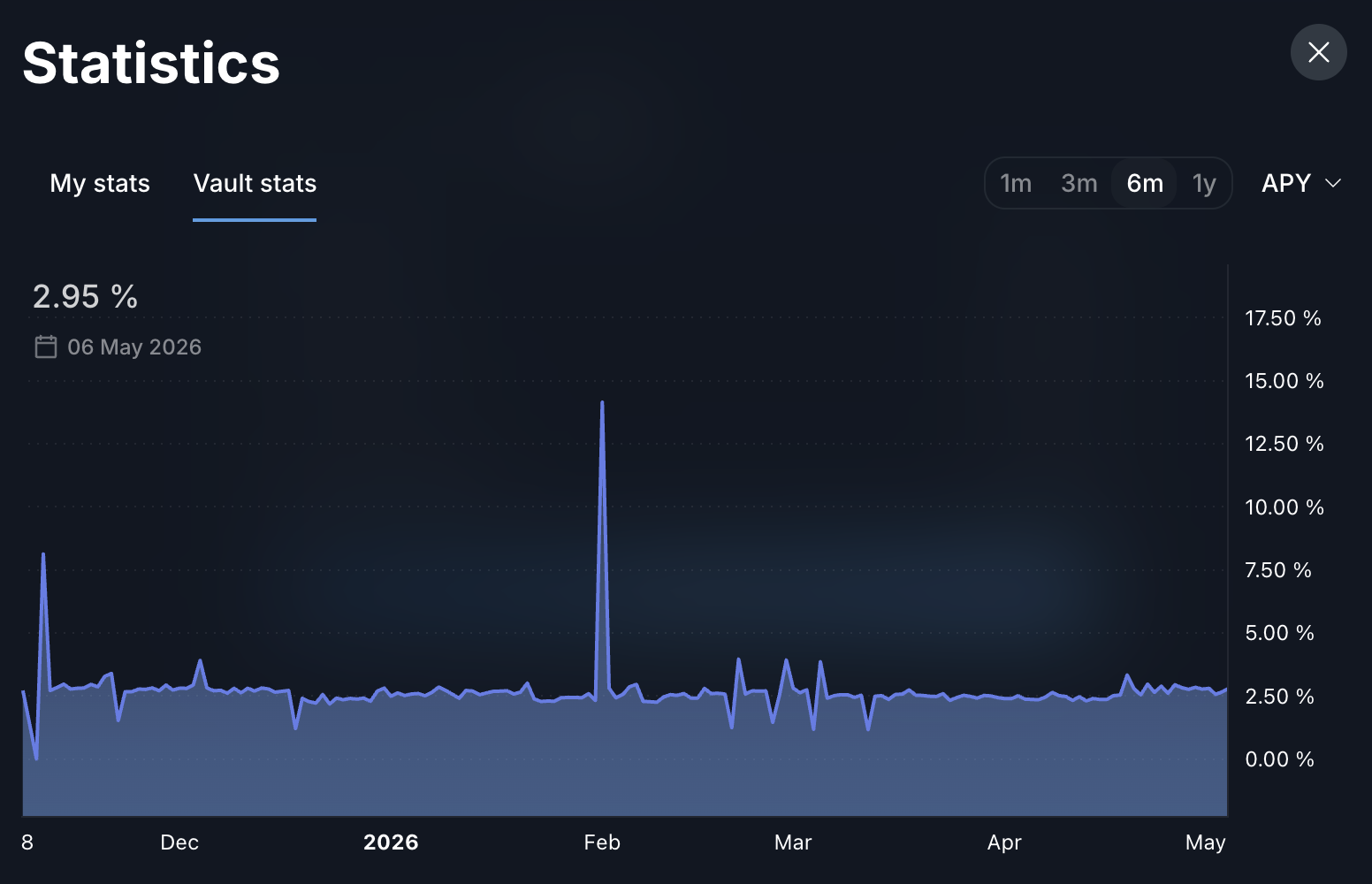
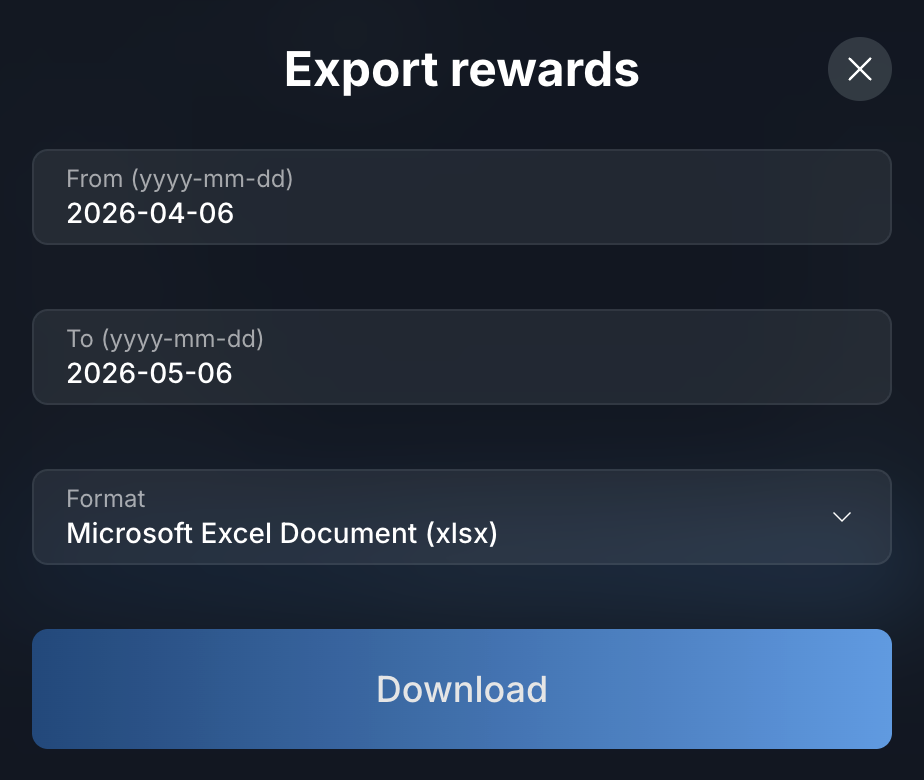
One useful option you'll find there is the ability to export an overview of your earned rewards:
Unstaking
Our staking DApp is not backed by a liquid staking token but instead natively stakes all the tokens that get deposited into the staking smart contract. As a consequence, native protocol limitations apply to the speed with which we can process unstaking requests. For that reason the unstaking process consists of two parts:
- Requesting the ETH to be unstaked / exited
- Claiming the exited assets
To unstake, first switch to the Unstake tab in the DApp and enter how many tokens you'd like to unstake. Click the Unstake button and confirm the transaction in your wallet.
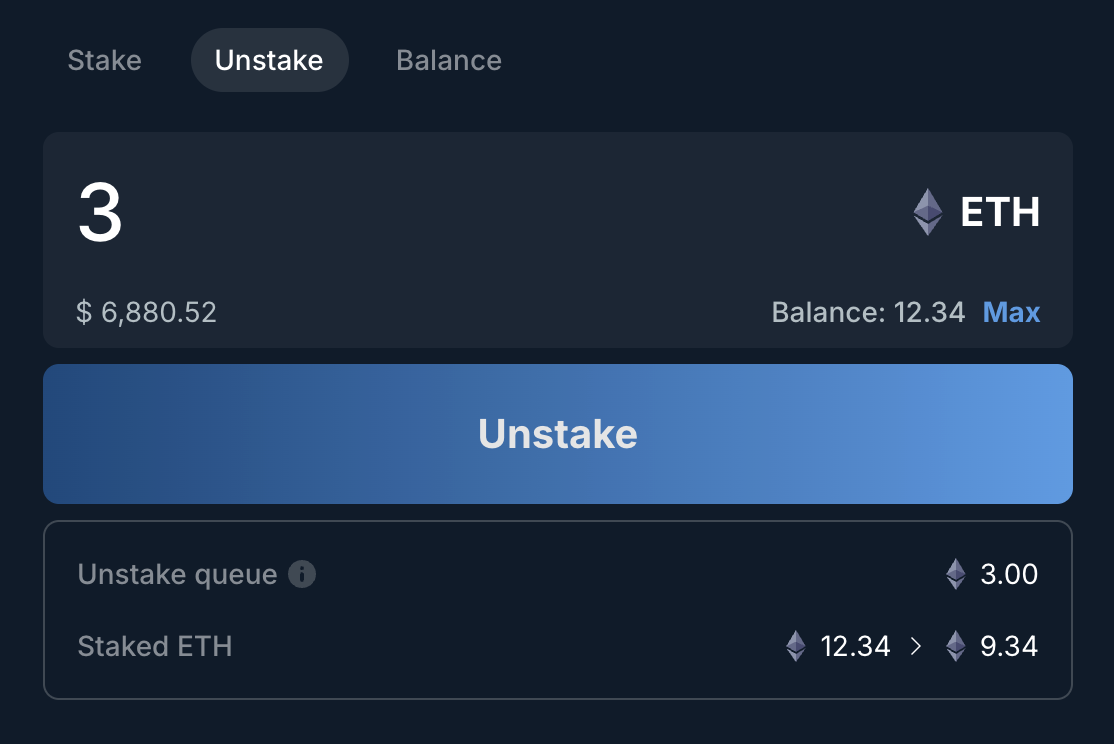
The amount of ETH you requested to unstake now has to make its way through the exit queue. The DApp will show you a personalized estimate of how long this will take, but you can also consult third-party tools like validatorqueue.com.
Once the ETH has exited and becomes claimable, you'll need to interact with the DApp one more time to claim the exited assets and move them to your wallet:
Advanced
The following section contains some tips for advanced users. The below steps are not required to use the DApp but can improve the overall experience for users of certain wallets.
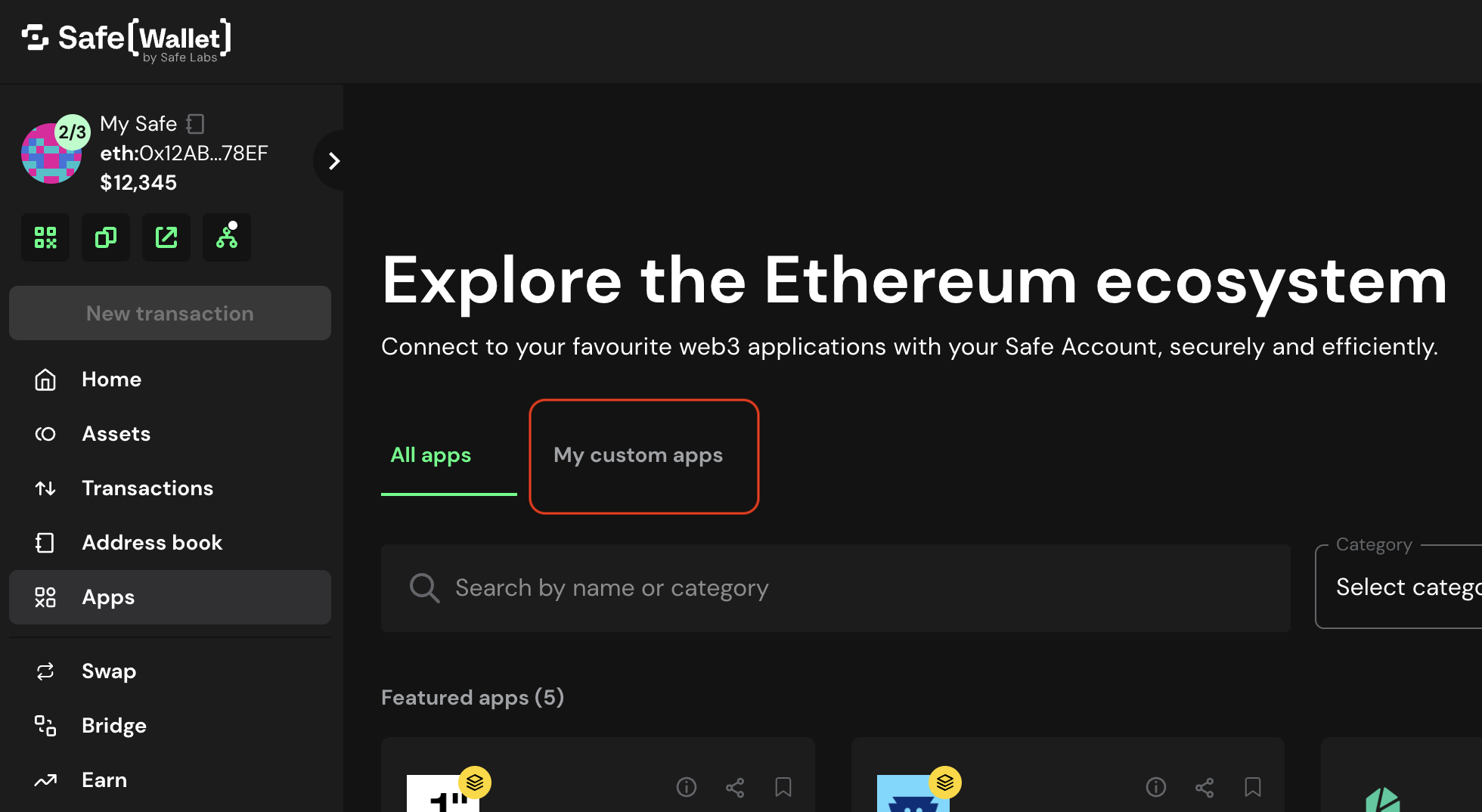
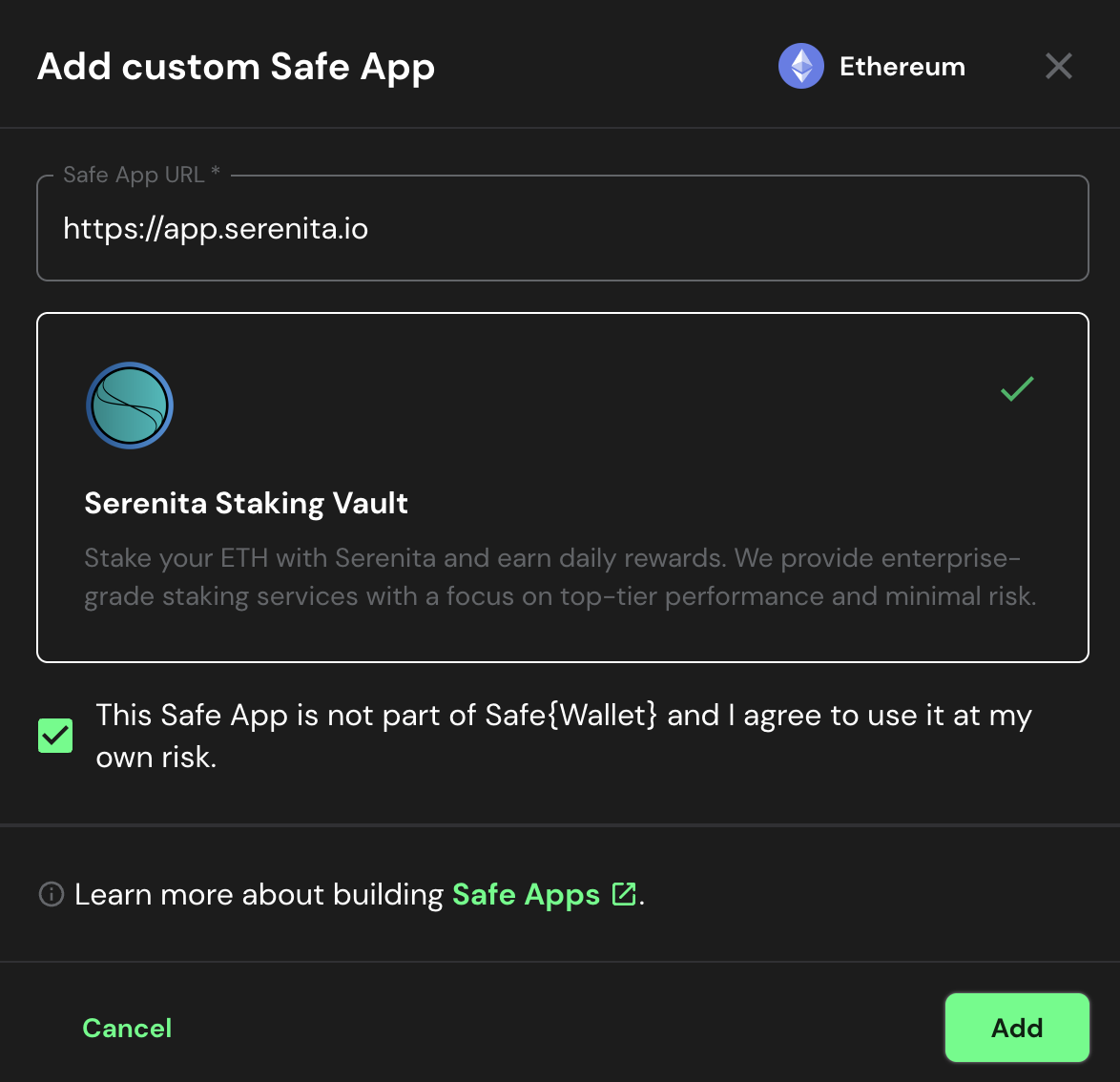
Safe{Wallet} - adding a custom Safe App
Safe{Wallet} is a popular multi-sig wallet securing billions of dollars in value on-chain. Setting up a multi-sig wallet can offer significant security benefits since control over assets can be split among multiple wallets (or multiple people).
Instead of using WalletConnect to connect to our staking DApp, you can add the DApp as a custom Safe App. This is an easier and more reliable way of connecting your wallet to the DApp – the wallet connects to the DApp automatically.
Ledger Wallet users - using Clear Signing
If you have a Ledger device that supports Clear Signing, read how to use it with our Dapp.